Guides & Learning Centre

Comprehensive guidance for mastering court bundle creation with BundleCreator. From essential tutorials to advanced techniques designed for legal professionals.

Quick Answer

BundleCreator publishes training videos, quick-start tutorials, area-specific walkthroughs (Divorce Financial, Child Arrangements, TOLATA, SEND, Employment), and a written help hub covering PD27A formatting, pagination, indexing, watermark rules, and collaborator workflows. Most guides run 3–7 minutes. A dedicated novice onboarding series walks first-time users through creating a bundle end-to-end in under 20 minutes.

BundleCreator is a document preparation tool, not a law firm. The templates, guidance and features we provide are general information, not legal advice on your particular case, and using BundleCreator does not create a lawyer-client relationship. Wherever you can, please get advice from a qualified legal adviser — a solicitor, barrister, chartered legal executive or other regulated professional — before filing documents or attending a court or tribunal hearing.

Read the full disclaimer

Getting Started

New to BundleCreator? These guides are designed to help you begin creating professional bundles.

Quick Start Guide

Learn the essentials of creating your first court bundle. Designed for practitioners new to the platform.

Learn More

Your First Bundle

New to bundles? Watch our guided video series — no experience needed. Start creating in minutes.

Start Here

PD27A Alignment Guide

Download our comprehensive guide to Practice Direction requirements for court proceedings.

Download PDF
Training Route

Three stops to a court-ready bundle

Watch the short videos, practise on your Training Bundle, then build for real. Take the stops in any order, in your own time.

Before you start

Knowing the Boundary

Three short videos on the limits of what BundleCreator does and where a regulated solicitor or barrister takes over. Watch these before the feature tutorials — they answer the questions everyone asks but no one wants to put their hand up for.

When to Stop and Get Legal Advice

2:44

Eight situations where the right step is to pause and speak to a solicitor or barrister — and where to find legal advice including legal aid, Law Centres, LawWorks, Advocate, and the Law Society Find a Solicitor tool.

What a McKenzie Friend Can and Cannot Do

1:57

What a McKenzie Friend may do (take notes, help with paperwork, suggest questions, sit alongside you) and what they may not (address the court without permission, file documents, sign documents, give legal advice).

How BundleCreator Handles Your Data

1:30

Where your bundles live (UK-only, London region), how documents are protected (AES-256 at rest, TLS 1.3 in transit), what we log, and why this matters for sensitive cohorts including domestic abuse, public children law, and redacted documents.

Quick Start Guide

Create your first bundle using this step-by-step guide designed to help meet court requirements

1

Create Your Account

Begin your 7-day trial — no credit card required. BundleCreator is designed with authentication features to help protect your legal documents.

Getting Started:

  1. Click "Start Your 7-day Trial" on the homepage
  2. Enter your email address and create a password
  3. Verify your email (tick your inbox for the verification link)
  4. Complete your profile with your name and organisation (optional)

You should see: A confirmation message that a verification email has been sent to your address. The sign-up button will show a loading state, then redirect you to the verification page.

Security Note: Your account is designed with security features including encryption and optional two-factor authentication.

Common Issues:

  • • Verification email not received? Tick your spam folder
  • • Link expired? Request a new verification email
  • • Password requirements: Minimum 8 characters with mixed case
2

Select Your Legal Area

Choose from over 370 templates across 24 areas of law. Each area provides tailored templates and formatting specific to that type of proceeding.

Family Law
Criminal Law
Employment
Immigration
Personal Injury
And 19 more...

You should see: A grid of legal practice areas. After selecting one, the button will highlight in purple and you'll proceed to template selection.

💡 Pro Tip:

Not sure which area to choose? Select "General Litigation" for a flexible template that can be adapted to most proceedings.

3

Select a Template or Start Fresh

Choose a pre-configured template with common documents for your case type, or create a blank bundle to build from scratch.

📋 Use a Template

Pre-configured with standard sections and placeholder documents

  • • Designed to help reduce preparation time
  • • Structure designed to help meet court requirements
  • • Easy to customise

📄 Start Fresh

Build your bundle from scratch with complete flexibility

  • • Full control over structure
  • • Add sections as needed
  • • Suitable for unique cases

You should see: Two cards showing template options. After selecting, you'll see the bundle editor with either a pre-configured structure or a blank canvas.

4

Upload Your Documents

Add your PDF documents to the bundle. The system typically processes them with OCR for searchability and calculates page numbering.

Upload Methods:

  • Drag & Drop: Simply drag PDF files from your computer directly onto the section where you want them
  • Click to Browse: Click the upload area and select files from your computer
  • Folder Upload: Upload entire folders to add multiple documents simultaneously

📁 Supported File Types:

  • • PDFs, Word documents (.docx), photographs (JPG, PNG) and video evidence (MP4, MOV)
  • • Large files are compressed automatically — courts and tribunals usually cap individual files at 14 MB
  • • Clear, readable scans may improve OCR results

You should see: A dotted border area where you can drag files. When you drag files over it, the border will turn purple. After uploading, documents appear in the section with progress bars during processing.

Troubleshooting Upload Issues:

  • • Upload failing? Check the file is one of the supported types and try again — large files are compressed automatically
  • • Processing stuck? Refresh the page — your bundle auto-saves
  • • Multiple files? Select them all at once or drag a folder
5

Organise Your Bundle

Arrange your documents in the appropriate order. Page numbering typically updates as you reorganise.

📁 Reorder Sections

Drag sections by their handle to rearrange them. Section letters (A, B, C) update automatically.

Hold and drag the grip icon (⋮⋮) next to any section

📄 Reorder Documents

Drag documents within a section to reorder. Document numbers and page ranges typically update automatically.

Documents can only be moved within their section

Automatic Features:

  • ✓ Document numbering (1, 2, 3...)
  • ✓ Page ranges (A1-A15, B1-B23...)
  • ✓ Section letters (A, B, C...)
  • ✓ Index generation
  • ✓ Auto-save typically every 8-10 seconds

You should see: Your bundle structure with grip icons (⋮⋮) beside each section. When dragging, the section being moved shows a shadow effect. Document numbers update instantly after dropping.

6

Edit Your PDF Documents

Use the built-in PDF Editor to annotate documents, add signatures, and make necessary edits directly within BundleCreator.

✏️ Available Editing Tools:

Text Box: Add text annotations anywhere on the page
Signature: Draw, type, or upload your signature
Cross Mark: Add cross marks (✗) for corrections
Tick Mark: Add tick marks (✓) for confirmations

How to Use the PDF Editor:

  1. 1.
    Open the Editor: Click the "Edit PDF" button next to any document
  2. 2.
    Select a Tool: Choose from the toolbar at the top (Text, Signature, Cross, or Tick)
  3. 3.
    Place Your Edit: Click anywhere on the PDF page to add your annotation
  4. 4.
    Adjust Position: Drag the edit box to reposition it as needed
  5. 5.
    Fix to Page: Click "Fix to Page" to permanently place your edits on the document

💡 Fix to Page Feature:

The "Fix to Page" button permanently embeds your annotations into the PDF. This ensures:

  • • Your edits become part of the document itself
  • • Annotations remain visible when exporting or sharing
  • • Court receives the document with all your modifications
  • • Once fixed, edits cannot be moved or deleted

Adding Signatures:

  1. 1. Draw: Use your mouse or touchpad to draw your signature
  2. 2. Type: Type your name and choose from signature fonts
  3. 3. Upload: Upload an image of your signature (PNG/JPG)
  4. 4. Save for Reuse: Save your signature to use across multiple documents

You should see: The PDF opens in a viewer with a toolbar at the top showing Text, Signature, Cross (✗), and Tick (✓) tools. Selected tools highlight in purple. Your cursor changes to indicate the active tool.

7

Add Case Information

Complete the bundle header with your case details. This information appears on the cover page and throughout the bundle.

e.g., FD24D12345

e.g., Central Family Court

Select from calendar

e.g., HHJ Smith

You should see: A form with fields for case details. Required fields are marked with asterisks. The hearing date field opens a calendar picker. Fields auto-save as you type (shown by a tick icon).

Note: Different practice areas may have specific metadata requirements. The system aims to show relevant fields based on your selected area of law.

8

Export Your Bundle

Generate your final court bundle with automatic indexing, page numbering, and optional compression.

📑 Standard Export

Full quality PDF with index

  • • Best for printing
  • • Original quality
  • • Larger file size

🗜️ Compressed Export

Optimised for email (typically under 20MB)

  • • Significant size reduction
  • • Court-readable quality
  • • Email-friendly

📋 Index Only

Download just the index page

  • • Quick reference
  • • Print separately
  • • Share overview

✅ Your bundle includes:

  • • Professional cover page with case details
  • • Comprehensive index with page references
  • • Bates per-section numbering (A1, A2 ... B1, B2 ...) for PD27A non-financial-remedy bundles, or consecutive Arabic numbering for financial remedy
  • • All documents in correct order
  • • Formatting designed to help meet court requirements

You should see: An export dialogue with three options. After clicking an export button, a progress bar appears. Once complete, your browser downloads the PDF automatically. Check your Downloads folder.

Export Troubleshooting:

  • • Download not starting? Check browser pop-up blocker settings
  • • File too large for email? Use the Compressed Export option
  • • Need to make changes? Cancel export and edit before regenerating

Ready to Create Your First Bundle?

Save hours per bundle with automated court-ready document preparation and formatting.

How-To Guides

Comprehensive guides for specific tasks and features

✏️ PDF Editor Guide

How to add text annotations to PDFs

Adding text annotations helps clarify or complete information in your documents:

  1. Open the PDF Editor by clicking "Edit PDF" next to your document
  2. Select the "Text" tool from the toolbar (T icon)
  3. Click on the PDF where you want to add text
  4. Type your text in the box that appears
  5. Adjust formatting: font size, colour, and style as needed
  6. Drag the text box to position it precisely
  7. Click "Fix to Page" when satisfied with placement

💡 Positioning Tip:

When you drag a text box, you'll notice it displays a drop shadow that makes it stand out from the PDF. This visual feedback helps you position boxes precisely over form fields. When you hover over a selected box, a lighter shadow appears to show it can be moved.

Pro Tip: Use text annotations to fill in form fields that cannot be typed in directly, or to add case references and notes.

How to sign documents electronically

BundleCreator offers three ways to add your signature:

Option 1: Draw Your Signature

  1. Click the Signature tool
  2. Select "Draw" tab
  3. Use your mouse/touchpad to draw
  4. Click "Clear" to retry if needed

Option 2: Type Your Signature

  1. Click the Signature tool
  2. Select "Type" tab
  3. Enter your name
  4. Choose from signature fonts

Option 3: Upload Signature Image

  1. Click the Signature tool
  2. Select "Upload" tab
  3. Choose PNG/JPG file of your signature
  4. Adjust size as needed

Important: Always use "Fix to Page" after placing your signature to ensure it becomes part of the document.

Understanding the Fix to Page feature

The "Fix to Page" feature is crucial for finalising your edits:

What it does:

  • Permanently embeds your annotations into the PDF
  • Converts editable elements into fixed content
  • Ensures edits appear in exported documents
  • Prevents accidental movement or deletion

⚠️ Before using Fix to Page:

  • Double-check all annotations are correctly positioned
  • Verify spelling and content accuracy
  • Ensure signatures are clear and properly placed
  • Remember: fixed edits cannot be undone
Visual Positioning Aids

The PDF Editor includes visual aids to help you position elements precisely:

Drop Shadows During Dragging

When you drag any edit box (text, signature, or date), a strong drop shadow appears beneath it. This shadow creates visual depth, making the box appear to float above the PDF. This helps you see exactly where you're placing the box, especially when positioning over busy form backgrounds.

Hover Indicators

When you hover your mouse over a selected box, a subtle shadow appears. This visual cue indicates that the box is ready to be moved or edited. It helps you identify which elements are interactive versus those that have been fixed to the page.

Alignment Benefits

These visual shadows help you:

  • Align text boxes with form fields accurately
  • Position signatures in designated signature areas
  • Place dates and checkmarks precisely where needed
  • See the box clearly even on complex backgrounds

💡 Pro Tip for Precision:

Use the drop shadow as a guide when aligning multiple boxes. The consistent shadow depth helps you judge whether boxes are at the same position relative to the page, making it easier to create neat, professional-looking annotations.

Troubleshooting common PDF Editor issues

Edits not appearing after save:

Ensure you clicked "Fix to Page" before saving. Unfixed edits remain as overlays and may not export.

Cannot select or move annotations:

If edits are already fixed to page, they cannot be moved. Create new annotations instead. Note: selected boxes should show a hover shadow when they can be moved.

Difficulty positioning boxes precisely:

Use the drop shadow visual feedback when dragging. The shadow helps you see the box clearly against the PDF background, making precise positioning easier.

Signature appears blurry:

For uploaded signatures, use high-resolution images (300 DPI minimum). For drawn signatures, try using a graphics tablet or touchscreen.

PDF takes long to load:

Very large PDFs may take a moment to render — BundleCreator compresses files automatically on export to fit court file-size limits.

💡 Quick Fix:

Refresh the page if the editor becomes unresponsive. Your bundle auto-saves every 8-10 seconds.

📄 Document Management

How to upload multiple documents at once

You can upload multiple PDFs simultaneously using these methods:

  • Select multiple files: Hold Ctrl (Windows) or Cmd (Mac) while clicking files
  • Drag multiple files: Select all files and drag them to the upload area
  • Folder upload: Click the folder icon to upload an entire directory

Tip: Files are typically processed in parallel to help improve efficiency.

How to swap out a document

If you need to update a document with a newer version:

  1. Delete the existing document using the bin icon in its row
  2. Click "+ Add Document" in the same section and upload the new file
  3. Drag the new document to the position the old one held — page numbers re-flow automatically
How BundleCreator combines your files

You don't need to merge PDFs before uploading. BundleCreator stitches every uploaded PDF, Word document, image and video evidence file into a single court-ready PDF when you click Download:

  • Upload each file into the section it belongs in — the order on the page is the order in the bundle
  • Switch numbering between Sections (A1, A2, B1) and Continuous (A1–A4, B5–B11) with the toolbar toggle
  • The export adds an auto-generated index, runs OCR on scanned pages, and compresses to fit court file-size limits

👥 Collaboration & Sharing

How to share a bundle with colleagues

Share bundles for collaboration:

  1. Open the bundle you want to share
  2. Click the "Share" button in the top toolbar
  3. Enter colleague's email address
  4. Choose permission level (View only or Edit)
  5. Add optional message and click "Send Invitation"

Note: Recipients typically receive an email with a link to access the bundle.

How to track who accessed shared bundles

Monitor bundle access through the Activity Log:

  • Go to Dashboard → Activity Log
  • Filter by "Access" events
  • See timestamps, user details, and actions taken
  • Export activity reports for records
How to revoke access to shared content

Remove access to previously shared bundles:

  1. Open the bundle's Share dialog
  2. Click "Manage Access" tab
  3. Find the user in the access list
  4. Click the remove (X) button next to their name

Important: This typically only affects future access. Downloaded copies remain with the user.

📋 Using Templates

How to customise a template

Templates are fully customisable:

  • Add sections: Click "+ Add Section" button
  • Remove sections: Click section menu → Delete
  • Rename sections: Click on section title to edit
  • Replace placeholder docs: Upload your actual documents
  • Reorder everything: Drag and drop as needed
Using the Pro-tips Starter Bundle to practise

Every new account comes with a Pro-tips Starter Bundle — a risk-free practice bundle that does not count against your bundle limit:

  1. Open it from your dashboard — Section A and Section B are pre-populated with template documents
  2. Type over the yellow guidance to see how drafting works in BundleCreator
  3. Upload sample files into Exhibit 1 to test the numbering and index
  4. Delete or break anything — it won't affect your real bundles
Template vs blank bundle

Use a template when:

  • Following standard court procedures
  • Need guidance on requirements
  • Want to save setup time

Start blank when:

  • Have unique requirements
  • Creating a custom structure
  • Building a new template

📁 Bundle Organisation

How to use folders to organise bundles

Keep your bundles organised with folders:

  1. Click "New Folder" in your bundle library
  2. Name it (e.g., "Active Cases", "2024 Archives")
  3. Drag bundles into folders
  4. Create nested folders for sub-categories
  5. Use colour coding for visual organisation
Best practices for naming bundles

Use consistent naming conventions:

  • Include case number: "FD24D12345 - Smith v Jones"
  • Add hearing date: "2024-03-15 Final Hearing Bundle"
  • Specify version: "Draft v2" or "FINAL"
  • Use client initials: "JS - Child Arrangements"

Avoid: Special characters (/, \, ?, *, :) that may cause issues.

How to duplicate a bundle

Create copies for different versions or similar cases:

  1. From My Bundle Library, click the three-dots menu (⋮) on the bundle you want to copy
  2. Select "Duplicate"
  3. A full copy appears in your library — rename it from its three-dots menu

Use cases: Creating hearing bundles from trial bundles, version control, similar cases.

Best Practices for Legal Professionals

Essential guidance for creating court-ready bundles and managing legal documents effectively

⚖️PDF Editing for Court Documents

When to Use PDF Editing:

  • Redacting sensitive information (use black text boxes and Fix to Page)
  • Adding exhibit labels or reference numbers to documents
  • Completing forms that cannot be filled electronically
  • Adding witness signatures or attestation clauses
  • Marking documents as "DRAFT" or "CONFIDENTIAL"

⚠️ Critical Reminders:

  • Always verify edits comply with court rules before submission
  • Keep unedited originals for your records
  • Use "Fix to Page" for all final edits to ensure permanence
  • Test export functionality after editing to confirm all annotations appear

📊Document Organisation Standards

Following Practice Direction 27A requirements for UK Family Courts:

Standard Section Order:

  1. Applications and Orders
  2. Statements and Affidavits
  3. Expert Reports
  4. Police Disclosure
  5. Local Authority Documents
  6. Correspondence
  7. Financial Documents

Chronological Rules:

  • Earliest documents first within each section (chronological forward order)
  • Applications in date order (oldest first)
  • Witness statements by date signed
  • Expert reports by date commissioned
  • Correspondence in chronological order — verify the court’s specific directions for your case

Pre-Submission Quality Checklist

Before Finalising Your Bundle:

Document Checks:

  • All documents are readable and correctly oriented
  • Sensitive information properly redacted
  • Page numbering is sequential and correct
  • All signatures are in place where required

Bundle Structure:

  • Index accurately reflects contents
  • Case details are complete and accurate
  • Documents in correct chronological order
  • Bundle size within applicable court limits (PD27A caps Family Court e-bundles at 350 pages without court permission)

Final Step: Always download and review the exported bundle PDF before submission to ensure all edits, signatures, and formatting appear correctly.

⚠️Common Pitfalls to Avoid

Document Issues:

  • ❌ Uploading password-protected PDFs
  • ❌ Including privileged documents by mistake
  • ❌ Forgetting to redact personal data
  • ❌ Mixing portrait and landscape orientations

Process Issues:

  • ❌ Not saving work regularly
  • ❌ Editing after "Fix to Page" attempted
  • ❌ Submitting without final review
  • ❌ Exceeding page limits without permission

Keyboard Shortcuts

These keyboard shortcuts may help improve your workflow

General

Save bundleCtrl/Cmd + S
Export bundleCtrl/Cmd + E
Search documentsCtrl/Cmd + F
UndoCtrl/Cmd + Z
RedoCtrl/Cmd + Y

Navigation

Next documentTab
Previous documentShift + Tab
Expand all sectionsCtrl/Cmd + ↓
Collapse all sectionsCtrl/Cmd + ↑
Go to dashboardG then D

Document Actions

Upload documentCtrl/Cmd + U
Delete selectedDelete
Rename documentF2
View documentEnter

Document Editor

Bold textCtrl/Cmd + B
Italic textCtrl/Cmd + I
Insert linkCtrl/Cmd + K
Bullet listCtrl/Cmd + Shift + 8

Tip: Press ? anywhere in the application to view context-specific shortcuts

Most people using BundleCreator are representing themselves because instructing a solicitor is out of reach. If you need someone to talk your case through with, free help is available from Citizens Advice, Civil Legal Advice on 0345 345 4345 (for those eligible for legal aid), LawWorks (free solicitor clinics), Advocate (the Bar pro bono charity) and your local Law Centre.

Bundle Audit

Bundle Audit analyses your bundle entirely in your browser to check completeness, search across documents, and catch missing references. The audit pass itself runs on your device — the documents themselves remain stored on BundleCreator’s UK-region infrastructure under AES-256 at rest and TLS 1.3 in transit.

How to use Bundle Audit

  1. Open your bundle in the editor
  2. Click the Bundle Audit button in the toolbar (sparkle icon)
  3. Click Audit bundle to start the analysis
  4. Review findings across four tabs: Audit, Search, Refs, and Tips

Understanding the Audit Score

You will notice two percentages in the editor: the Bundle Completion percentage and the Audit Score. These measure different things and will often show different numbers.

Bundle Completion %

Tracks how much of each document you have filled in, based on the completion slider you set per document. It is a self-assessed measure of progress.

Audit Score %

A deeper check that combines three factors: your document completion (40%), whether templates have actually been edited (30%), and whether required documents are present for your hearing type (30%).

Why might the Audit Score be lower?

  • Documents still contain template instructions (yellow highlighted text) that have not been replaced with your own content
  • Square bracket placeholders like [your name] or [insert date] have not been filled in
  • Required documents for your hearing type are missing (e.g. no position statement for a family hearing)
  • Page count limits from Practice Directions have been exceeded

The four tabs explained

Audit

Checks your bundle against hearing-type-specific rules. Shows which documents need updating, which are missing, and flags page count issues.

Search

Find any text across all documents in your bundle instantly. Results show the document, section, and a snippet of the matching text.

Refs

Detects cross-references between documents (e.g. "see Exhibit C") and checks whether the referenced document actually exists in your bundle.

Tips

Suggests improvements like reordering documents to match Practice Direction conventions, and flags potential duplicate documents.

Privacy

The audit pass itself processes your documents on your device — that step is not sent to our servers for analysis. Your documents remain stored on BundleCreator’s UK-region infrastructure (London) under AES-256 encryption at rest and TLS 1.3 encryption in transit; the on-device audit step adds an additional layer on top of that storage architecture.

Troubleshooting Common Issues

Upload Issues

"File upload failed" error

  • • Check the file is a supported type (PDF, Word, image, or video evidence)
  • • Try refreshing the page and re-uploading
  • • Verify your internet connection

Documents not appearing after upload

  • • Wait for processing to complete (progress bar)
  • • Verify the correct section for your document
  • • Refresh the page if needed

Export Issues

Export taking too long

  • • Large bundles may take several minutes
  • • Do not close the browser during export
  • • Verify your download folder
  • • Try compressed export for faster processing

Exported PDF may not open

  • • Ensure download completed fully
  • • Try a different PDF viewer
  • • Re-export the bundle
  • • Contact support if issue persists

Performance Issues

Application running slowly

  • • Close unnecessary browser tabs
  • • Clear browser cache and cookies
  • • Chrome, Firefox, or Edge may provide better performance
  • • Disable browser extensions temporarily

Auto-save not working

  • • Check internet connection
  • • Look for save indicator when available
  • • Manually save with Ctrl/Cmd + S
  • • Check Activity Log for save confirmations

Still need help?

Our support team aims to assist you

Training Route — Watch step

Your Training Journey — Watch, Practise, Build

10 short stops, about 29 minutes in total. Watch in any order. The Training Bundle in your library is there to look around — nothing you do in it can break.

1

What Is a Court Bundle?

2 min

What bundles are, why courts and tribunals require them, and how BundleCreator fits in.

2

Why a Court or Tribunal Bundle is So Important

7 min

What the judge actually reads, what you must provide, how the rules vary by area of law, and what to do if documents go missing.

3

The Bundle Index Explained

3 min

How the index is structured, what each entry must contain, and how the page references work — the map a judge uses to navigate the bundle.

4

How a Court Bundle is Organised

3 min

Sections, ordering, and the conventions that make a bundle recognisable to the court — preliminary documents, witness statements, exhibits.

5

Getting Started with BundleCreator

4 min

Your first thirty seconds in BundleCreator — the Training Route, the area-of-law picker, the Training Bundle editor with sections, drag handles, inline rename, and the toolbar. Watch this before opening your Training Bundle.

6

Using Templates Effectively

2 min

Pen icon to open · yellow guidance auto-removed at bundle creation · court-compliant headers driven from your Case Details · Sections / Continuous numbering toggle · the safety-net reminder that the guidance is a drafting prompt, not legal advice.

7

Creating Your First Bundle

2 min

From the Practise step on your dashboard, head to My Bundle Library, click Create New Bundle, pick your area of law and hearing type, and watch the editor open with your Training Bundle's Section A and Section B already in place.

8

Working with Documents

2 min

Inside the Pro-tips bundle: replace yellow guidance with your own words, format text, open the Supporting Statement, upload a PDF to Exhibit 1, add a new document via the Add Document modal, and watch auto-save in action.

9

Filling in Case Details

1 min 32 sec

Fill in your case — court, case number, applicant, respondent, hearing date — and watch those details appear on the bundle's title page and every page header. Then open the export modal and watch BundleCreator assemble a single court-ready PDF.

10

Downloading Your Bundle

2 min

What happens when you click Download — five steps that produce a single court-ready PDF: assembly, pagination, OCR for searchability, compression for court file-size limits, and optional security like password protection and watermarking.

Done watching? Open your Training Bundle to practise.

Video Tutorials

Visual step-by-step guides designed to help you learn BundleCreator

Thumbnail for Getting Started with BundleCreator
1:50
Onboarding1:50

Getting Started with BundleCreator

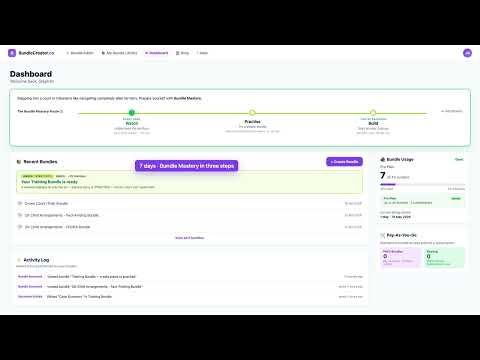
Your first thirty seconds in BundleCreator — the dashboard, the trial banner, the Create Bundle button top right, the area-of-law modal covering 24 areas of law plus a Pro-tips practice tile, and the editor with sections, document, toolbar, and the Sections / Continuous numbering toggle. Built for litigants in person and legal professionals across England and Wales.

Thumbnail for Using Templates Effectively
1:55
Onboarding1:55

Using Templates Effectively

Over 370 templates across 24 areas of law, pre-loaded by area + hearing type. See the pen icon in the Actions column, type over the yellow guidance, and watch the yellow strip out automatically at export — drafting prompts stay in your editor and never reach the judge. Built for litigants in person and legal professionals across England and Wales.

Thumbnail for Why a Court or Tribunal Bundle is So Important
7:24
Core Concepts7:24

Why a Court or Tribunal Bundle is So Important

Before a hearing, the judge sits down with one thing: the bundle. Anything not in it is unlikely to be referred to at your hearing. This flagship explainer covers the judge's perspective, what you need to provide, how rules vary by area of law — from SEND Tribunal to Employment, Immigration and Family Court — and what to do if documents go missing. Built for litigants in person, Mackenzie friends, solicitors, and barristers across England and Wales.

Thumbnail for The Bundle Index Explained
1:57
Core Concepts1:57

The Bundle Index Explained

Every bundle starts with one page — not your strongest evidence, but an index. This short explainer covers what an index must do under the rules of England and Wales, why manually-produced bundles fall down when a document moves, and how BundleCreator regenerates the index automatically every time you add, reorder or upload.

Thumbnail for Page Numbering Explained (And Why It Matters)
2:23
Core Concepts2:23

Page Numbering Explained (And Why It Matters)

"Turn to page forty-two" — and everyone in the room needs to be on page forty-two. This explainer covers the two page-numbering styles courts use (continuous and section-restart), the rule that electronic bundles must be numbered by computer rather than by hand, and how BundleCreator re-flows every page number automatically when you move a document.

Thumbnail for The Template Library Explained
1:56
Basics1:56

The Template Library Explained

Over 370 templates across 24 areas of law — Family, Employment, Immigration, SEND, Housing, Property, Small Claims, Personal Injury, Commercial, IP, Probate, Criminal, and more. Each template is pre-loaded with the structure judges expect and yellow prompts telling you what to write in each section. This explainer shows how the library is organised and how to drop a template straight into your bundle.

Thumbnail for Your Trial, Watermark, and Payment — Explained
1:52
Pricing1:52

Your Trial, Watermark, and Payment — Explained

How BundleCreator's 7-day trial works, what happens on day 7, when the watermark kicks in, and what you pay after that. No credit card at signup. Bundles run up to 1,000 pages — the same limit as paid plans. Plus Pay-as-you-go at £29.99 per bundle for users who only need one hearing.

Thumbnail for The NeuroDiverse Toolbox
2:03
Accessibility2:03

The NeuroDiverse Toolbox

One in five people is neurodiverse. BundleCreator includes nine accessibility tools — Read Aloud, OpenDyslexic font, Reading Ruler, Colour Overlay, Text Spacing, Dark Mode, Focus Mode, Reduced Motion, and the Pom-a-doro Timer — free for every user, off by default. This animated walkthrough shows exactly where to enable the Toolbox from your avatar menu, and how each tool works.

Thumbnail for What Happens When You Click Download
1:58
Output1:58

What Happens When You Click Download

When you click Download, BundleCreator does more than save a copy. It assembles the bundle, applies pagination in the style your court requires, re-generates the index, runs OCR for searchability, compresses to fit court file-size limits, and applies optional security like password protection and watermarking. This animated walkthrough shows each of the five steps that produce a single court-ready PDF.

Thumbnail for Finding Your Way Around BundleCreator
1:57
Onboarding1:57

Finding Your Way Around BundleCreator

Meet the Pro-tips Starter Bundle — the safe practice bundle every new BundleCreator account includes. This animated walkthrough covers the dashboard, trial banner, Create Bundle button, and the three regions of the editor: sections on the left, document in the centre, toolbar at the top.

Thumbnail for Creating Your First Bundle
1:40
Onboarding1:40

Creating Your First Bundle

Create a bundle in three clicks — from the dashboard Create Bundle button, through the 23-area-of-law picker, to picking a hearing type and watching the editor open. This walkthrough uses the Pro-tips Starter Bundle as the example so you see the flow without real-case complexity.

Thumbnail for Working with Documents
1:45
Onboarding1:45

Working with Documents

Inside the Pro-tips bundle: replace yellow guidance with your own words, format text, open the Supporting Statement, upload a PDF to Exhibit 1, add a new document via the Add Document modal, and watch auto-save in action.

Thumbnail for Case Details and Downloading
1:20
Onboarding1:20

Case Details and Downloading

Fill in your case — court, case number, applicant, respondent, hearing date — and watch those details appear on the bundle's title page and every page header. Then open the export modal, choose your options, and watch BundleCreator assemble a single court-ready PDF.

Thumbnail for Tips, Tricks and Next Steps
1:32
Onboarding1:32

Tips, Tricks and Next Steps

Numbering toggle (continuous vs section-restart), drag-to-reorder documents with auto-renumbering, the nine-tool NeuroDiverse Toolbox, time-limited sharing, the 7-day trial, and where to get help. A confidence send-off for your first real bundle.

Thumbnail for Your Court or Tribunal Journey
2:40
Core Concepts2:40

Your Court or Tribunal Journey

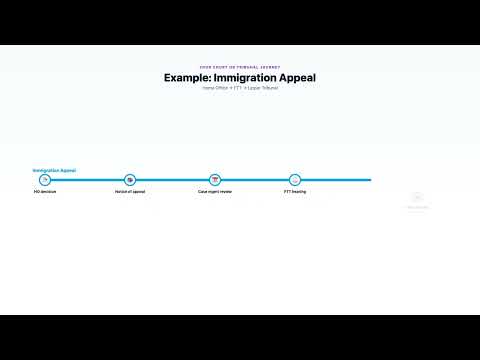
The London-Underground-style journey map for your case. Every stage of a court or tribunal process becomes a stop on a line — Apply, Case management, Mediation, Hearing, Decision, Appeal. Worked examples for Divorce finances, SEND Tribunal, Immigration appeals and the Employment Tribunal. BundleCreator builds the right bundle for the stop you're at.

Thumbnail for When to Stop and Get Legal Advice
2:44
Knowing the Boundary2:44

When to Stop and Get Legal Advice

BundleCreator is a presentation tool, not legal advice. This 2-minute walkthrough sets out eight situations where the right step is to pause and speak to a solicitor or barrister — and where to find legal advice including legal aid, Law Centres, LawWorks, Advocate (the Bar's pro bono unit), and the Law Society's Find a Solicitor. The list is not exhaustive: these are common moments, not the only ones. Litigation-expert-reviewed.

Thumbnail for What a McKenzie Friend Can and Cannot Do
1:57
Knowing the Boundary1:57

What a McKenzie Friend Can and Cannot Do

A McKenzie Friend is a lay person who quietly assists a litigant in person in court. The right was set out by the Court of Appeal in McKenzie v McKenzie [1971] P 33 and refined by the Master of the Rolls and the President of the Family Division in the 2010 Practice Guidance. This 2-minute walkthrough sets out what a McKenzie Friend may do (take notes, help with paperwork, suggest questions, sit alongside the litigant in person) and what they may not (address the court without permission, file documents, sign documents, correspond as the party's representative, give legal advice). BC's collaborator scopes reflect this boundary.

Thumbnail for How BundleCreator Handles Your Data
1:30
Knowing the Boundary1:30

How BundleCreator Handles Your Data

Your bundles, documents, and case details are stored and processed in the United Kingdom. BundleCreator is hosted on Google Cloud Run in the London region (europe-west2). Limited supporting services — payment processing and authentication — operate under UK GDPR-compliant transfer safeguards. Documents are encrypted at rest with AES-256 and in transit with TLS 1.3. UK GDPR and the Data Protection Act 2018 apply; the Information Commissioner's Office is the regulator. Particular reassurance for sensitive cohorts including domestic abuse, public children law, and redacted-document workflows.

Thumbnail for Document Upload & Processing
1:14
Documents1:14

Document Upload & Processing

Adding documents to a bundle without the spreadsheet gymnastics. Upload PDFs, Word documents, photos, and video evidence with AES-256 encryption in the UK region, and automatic continuous numbering across the bundle.

Thumbnail for Security Features
1:09
Security1:09

Security Features

AES-256 at rest, TLS 1.3 in transit, UK region hosting in London, two-factor authentication, role-based access, row-level security, and a seven-year audit log — designed to meet UK GDPR, SRA Principles, and BSB Core Duties.

Thumbnail for Keyboard Shortcuts Masterclass
1:02
Advanced1:02

Keyboard Shortcuts Masterclass

Press the question mark key anywhere in the editor to see every shortcut BundleCreator supports — Global, Structure, and Editing. Draft headings, lists, bold, italic, and undo without ever reaching for the mouse.

Thumbnail for NeuroDiverse Toolbox
1:59
Accessibility1:59

NeuroDiverse Toolbox

Ten accessibility tools built into BundleCreator — Read Aloud, OpenDyslexic Font, Reading Ruler, Colour Overlay, Text Spacing, Dark Mode, Focus Mode, Reduced Motion, Pomodoro Timer, and the Mindmap tool for understanding dense legal documents fast. Built because our founder is dyslexic.

Thumbnail for The Private Rented Sector in 2026
2:49
Insights2:49

The Private Rented Sector in 2026

A balanced, fully-sourced overview of the Renters' Rights Act 2025, the court backlog, the tax-and-EPC squeeze on landlords, and what the changes mean for tenants — with the BundleCreator housing journey map showing the route through possession, rent arrears and a tenant's defence.

Unable to find what you require? Request a specific tutorial and we may be able to create it.

Feature Deep Dives

Master every feature of BundleCreator with these comprehensive guides.

OCR Technology & Document Search

Our OCR technology is designed to convert scanned documents into searchable text, which may help with locating specific information across documentation.

Key Features:

  • OCR processing typically applied on upload
  • Full-text search across entire bundles
  • Highlight search results in documents
  • Export search results for reference

Best Practices:

  • Upload clear, high-quality scans which may improve results
  • Use specific search terms for accuracy
  • Review OCR results for handwritten documents
  • Save frequently used searches

Secure Redaction Tools

Tools designed to help protect sensitive information with redaction features. Redactions are typically tracked in the activity log for transparency and record-keeping.

Redaction Features:

  • Permanent, irreversible redaction
  • Bulk redaction across multiple pages
  • Pattern-based auto-redaction
  • Redaction reason documentation

Compliance & Security:

  • Full audit trail in activity log
  • Redaction features designed to help meet court standards
  • Role-based redaction permissions
  • Redaction verification tools

Activity Log & Audit Trail

Track all actions taken on your bundles with the comprehensive activity log. Useful for record-keeping, security, and team collaboration.

What's Tracked:

Document Actions:

  • • Document uploads and deletions
  • • Page reordering and modifications
  • • OCR processing completion
  • • Redaction applications

Access & Sharing:

  • • User access and login times
  • • Bundle sharing activities
  • • Permission changes
  • • Export and download events

Advanced PDF Compression

Our compression technology is designed to help bundles meet typical court email size requirements whilst aiming to maintain quality. Many bundles can be compressed to under 20MB.

Compression Benefits:

Up to 70%

Typical size reduction

1000

Max pages per bundle

High

Quality typically maintained

Not a law firm; not legal advice

BundleCreator is a document preparation and bundling tool designed to help you organise court and tribunal papers to a professional standard. We are not a law firm, we do not employ solicitors or barristers to advise you, and nothing on this website, in our templates, or in our guidance is legal advice on the particular facts of your case. Using BundleCreator does not create a solicitor-client, barrister-client, or any other professional relationship between you and us, and we do not carry on any of the reserved legal activities under the Legal Services Act 2007.

Every case is different. Wherever you can, please get advice from a qualified legal professional — a solicitor, barrister, chartered legal executive, or other regulated adviser — before filing documents or attending a court or tribunal hearing. If cost is a barrier, free help is available, and we would much rather you used it than went in unsupported.

For full details, please read our Legal Disclaimer, Terms of Service and Privacy Policy.

Practice Direction 27A Alignment Guide

Guidance designed to help your bundles align with typical Family Court requirements

Important: Updated for the Practice Direction 27A amendments in force from 2 March 2026 (with the 24 March 2026 clarifying update). Always verify current requirements with the court and check for any specific directions in your case.

Key Requirements

1. Bundle Structure

  • PD27A 350-page cap (Ch 11.2(b)): For Family Court e-bundles, 350 pages is the maximum. Exceeding it requires the court’s specific permission, which must be sought in advance. Create volumes for larger cases where permission is granted or for non-family jurisdictions with higher caps.
  • Section letters (Ch 7.3): A Preliminary documents, B Applications and orders, C Statements and affidavits, D Care plans, E Experts’ and other reports, F Medical records, G Police disclosure, H Public-law birth certificate.
  • Chronological forward order: Documents within each section arranged earliest first within each section.

2. Required Sections

  1. A: Applications and Orders
  2. B: Statements and Affidavits
  3. C: Expert Reports (including CAFCASS)
  4. D: Police Disclosure
  5. E: Medical Records/Reports
  6. F: Correspondence
  7. G: Other Documents

3. Page Numbering

  • Sequential numbering: Each section starts at page 1 (A1, A2... B1, B2...)
  • Continuous across volumes: Volume 2 continues numbering (A351, A352...)

4. Index Requirements

  • Comprehensive index: List all documents with page references
  • Document details: Include date, description, and page range
  • Updated index: Must be current when bundle is filed

Formatting Standards

Document Format

  • • A4 size paper only
  • • Portrait orientation (landscape by exception)
  • • Single-sided printing
  • • Minimum 12-point font for typed documents
  • • 2.5cm margins on all sides

Quality Standards

  • • Clear, legible copies
  • • No highlighting or annotations
  • • Black ink only
  • • No staples or paper clips
  • • Hole-punched for ring binders

What NOT to Include

  • Duplicate documents: Include each document only once
  • Correspondence between legal representatives: Unless specifically relevant
  • Without prejudice material: Unless all parties agree
  • Expert's working papers: Only final reports

BundleCreator Features Designed to Help With:

  • Page numbering (A1, B1, C1...)
  • Index generation with page references
  • Section organisation and lettering
  • Document numbering within sections
  • Cover page with case details
  • Chronological ordering tools

Includes checklist and filing instructions

Templates Designed to Help Meet Court Practice Directions

BundleCreator provides over 370 templates across 24 areas of law, designed to assist with Court Practice Direction requirements. Templates include standard formatting, sections, and indexing typically required by courts.

🎯 Templates are designed to help meet requirements of relevant Practice Directions including PD27A for Family Court, Criminal Procedure Rules, and more. Always verify current court requirements.

Featured Templates

UK Child Arrangements Bundle

Family Law

15-20 standard documents

Designed for FPR 2010 and PD27A

Pre-configured sections:

  • C100 Application
  • CAFCASS Reports
  • Position Statements
  • Chronologies
  • Contact Schedules

Divorce Proceedings Bundle

Divorce

20-25 standard documents

Designed for FPR 2010 and PD27A

Pre-configured sections:

  • Divorce Application
  • Form E
  • Financial Statements
  • Property Valuations
  • Pension Reports

Criminal Law Bundle

Criminal Law

12-18 standard documents

Designed for current Criminal Procedure Rules

Pre-configured sections:

  • Indictment
  • Witness Statements
  • Police Reports
  • Expert Evidence
  • Sentencing Guidelines

Employment Tribunal Bundle

Employment

15-20 standard documents

Designed for ET Rules of Procedure 2013, Schedule 1

Pre-configured sections:

  • ET1 Claim Form
  • ET3 Response
  • Contracts
  • Grievance Records
  • Witness Statements

Immigration Appeals Bundle

Immigration

20-30 standard documents

Designed for FtT (IAC) Rules 2014

Pre-configured sections:

  • Home Office Decision
  • Grounds of Appeal
  • Country Evidence
  • Expert Reports
  • Supporting Documents

Personal Injury Bundle

Personal Injury

15-25 standard documents

Designed for CPR Parts 32, 35 and 39

Pre-configured sections:

  • Medical Reports
  • Schedule of Loss
  • Police Reports
  • Witness Statements
  • Photographs

Over 370 templates available covering 24 areas of law including Conveyancing, Company & Commercial, Wills & Probate, Money & Tax disputes, and more. Templates are reviewed periodically to reflect current Practice Directions. Users should verify the bundle meets the typical requirements of their court or tribunal.

Best Practices for Legal Professionals

Professional guidance designed to help your bundles meet typical court standards

📁 Bundle Structure

  • Follow chronological order: Unless the court directs otherwise, arrange documents from earliest to most recent within each section
  • Respect bundle caps: PD27A caps Family Court e-bundles at 350 pages without court permission. BundleCreator supports up to 1,000 pages for non-family bundles and for cases where permission has been obtained.
  • Use standard sections: Applications, Orders, Statements, Reports, Correspondence, Other Evidence

📑 Document Preparation

  • High-quality scans: Using 300 DPI for text documents may help improve OCR accuracy
  • Single-sided pages: Scan documents single-sided for easier navigation
  • Remove duplicates: Include each document only once, even if referenced multiple times

🔒 Security & Compliance

  • Redact sensitive data: Remove personal information not relevant to the case (bank details, NHS numbers, etc.)
  • Track changes: Use the Activity Log to maintain an audit trail for your records
  • Secure sharing: Use time-limited share links for external parties

⏰ Time-Saving Tips

  • Batch upload: Select and upload multiple PDFs at once instead of one by one
  • Template library: Save frequently used bundle structures as templates
  • Keyboard shortcuts: Learn shortcuts to work faster (press ? for help)

PD27A Alignment Checklist

Required Elements:

  • ☑️ Case name and number on every page
  • ☑️ Comprehensive index with page numbers
  • ☑️ Sequential page numbering (A1, A2, B1...)
  • ☑️ Chronological order within sections

Format Requirements:

  • ☑️ A4 portrait orientation
  • ☑️ Single-sided pages
  • ☑️ Readable font size (min 12pt)
  • ☑️ Clear, legible copies

Security & Privacy Features

Understanding how BundleCreator protects your sensitive legal documents

🔒

Encryption at Rest and In Transit

All documents are protected with AES-256 encryption at rest and TLS 1.3 encryption in transit. Files are stored in our UK region (London) and never leave the United Kingdom in the ordinary course.

  • • Password protection for exported PDFs
  • • Encrypted storage in cloud infrastructure (AES-256)
  • • TLS 1.3 encryption in transit
🔍

Comprehensive Audit Trail

Actions are typically logged with timestamp and user details. Track access, edits, and shares for your records.

  • • Immutable activity log
  • • User attribution for all actions
  • • Export logs for your records
👥

Controlled Access

Permission settings designed to help control who can view, edit, or share your bundles. Access can typically be revoked when needed.

  • • Role-based permissions
  • • Time-limited share links
  • • IP restriction options
🛡️

Data Protection

Designed with GDPR considerations and data typically stored in UK region (London). We aim to maintain secure infrastructure.

  • • UK data residency
  • • Regular security audits
  • • ISO 27001 certification being pursued
🔐

Two-Factor Authentication

Two-factor authentication available to help add security to your account. Designed to support authenticator applications and SMS.

  • • TOTP authenticator support
  • • SMS backup codes
  • • Recovery options
🕳️

Auto-Logout & Session Management

Automatic logout after inactivity is designed to help protect against unauthorised access on shared computers.

  • • 30-minute inactivity timeout
  • • Session persistence options
  • • Device management

Your Data, Your Control

You retain ownership of your data. Export or delete your bundles at any time. We aim to only access your documents with appropriate permission.

Frequently Asked Questions

How does the compression work without compromising quality?

Our compression technology is designed to optimise legal documents by reducing file size through various PDF optimisation techniques whilst aiming to maintain text clarity and readability typically required by courts.

Can I work offline?

BundleCreator is a cloud-based application requiring an internet connection. The platform typically auto-saves your work every 8-10 seconds, which may help prevent data loss from brief connection interruptions. For offline work, export your bundle as a PDF.

What happens to my data if I cancel my subscription?

You typically retain access to export your bundles for 30 days after cancellation. After that, data is scheduled for deletion according to our data retention policy. We recommend exporting important bundles before cancellation.

Can multiple people work on the same bundle simultaneously?

Yes. Collaboration features are available. When you share a bundle with edit permissions, multiple users can work together. Changes are typically synchronised and the activity log is designed to track modifications.

Is there a limit to bundle size?

Individual files are limited to 10MB. Bundles can contain up to 1,000 pages technically, but PD27A caps Family Court e-bundles at 350 pages without court permission. Larger cases can be divided into multiple volumes once permission has been granted.

Can I customise the bundle index format?

The index is designed to follow typical court formatting requirements. While the core structure aims to meet standard requirements, you can add custom metadata fields and adjust section titles to match your specific needs.

How long does OCR processing take?

OCR processing often completes within seconds per document, though this may vary. Large bundles may be processed in parallel. You can typically continue working while OCR runs in the background.

Can I track who has accessed my bundle?

Yes. The activity log is designed to track access, edit, download, and share actions with timestamps and user details. This aims to help you monitor who performed which actions and when.

What file formats are supported?

PDFs, Word documents (.docx), photographs (JPG, PNG), and video evidence (MP4, MOV) are all supported. Large files are compressed automatically to fit the file-size limits most courts and tribunals impose on e-bundles.

Can I redact information after sharing a bundle?

Yes, but changes typically only apply to future access. Previously downloaded copies remain unchanged. The activity log is designed to show when redactions were applied for transparency.

Is my data backed up?

Yes, all data is automatically backed up multiple times daily with point-in-time recovery available. In the unlikely event of data loss, we can restore your bundles from backups.

Can I integrate BundleCreator with my case management system?

Direct API integration is on our roadmap. Currently, you can export bundles as PDFs for import into other systems. Contact us at enterprise@bundlecreator.co to discuss specific integration requirements.

Need Additional Help?

Our support team is knowledgeable about our platform and is here to help with technical questions.

Email Support

Support team aims to respond promptly

support@bundlecreator.co

Live Chat

Available Mon-Fri 9am-5pm GMT

Knowledge Base

Search the help library

Ready to Create Your First Bundle?

Transform your practice, enhance efficiency, and achieve legal agility with BundleCreator

7-day trial, no credit card required • Cancel anytime

Legal Notice: All templates and guidance provided are for informational purposes only and do not constitute legal advice. Court requirements may vary by jurisdiction and change over time. Users are solely responsible for ensuring their bundles meet all current court rules and practice directions. Always consult with qualified legal counsel when preparing court documents.